
A well-designed screenshot system helps you document more efficiently by automatically capturing images at key moments, such as errors or steps, reducing manual effort. Organize your screenshots with clear folders and descriptive filenames, making it easy to find and update visuals later. Use tools with tagging and metadata to improve searchability. Setting up standardized processes guarantees consistency and clarity. Keep exploring to discover how to build a robust system that saves you time and maintains quality.

Get the latest gadgets delivered free with Prime
- Fast, free delivery on millions of items
- Prime Video, Amazon Music and more included
- Member-only deals all year
Key Takeaways
- Automate screenshot capture at critical moments to ensure comprehensive and up-to-date documentation.
- Organize images with descriptive folders and filenames for easy retrieval and consistency.
- Use tagging and metadata to facilitate quick search and filtering of visual assets.
- Implement standardized naming conventions and version control for clarity and tracking updates.
- Set up tools to trigger automatic captures during specific UI events or user actions.
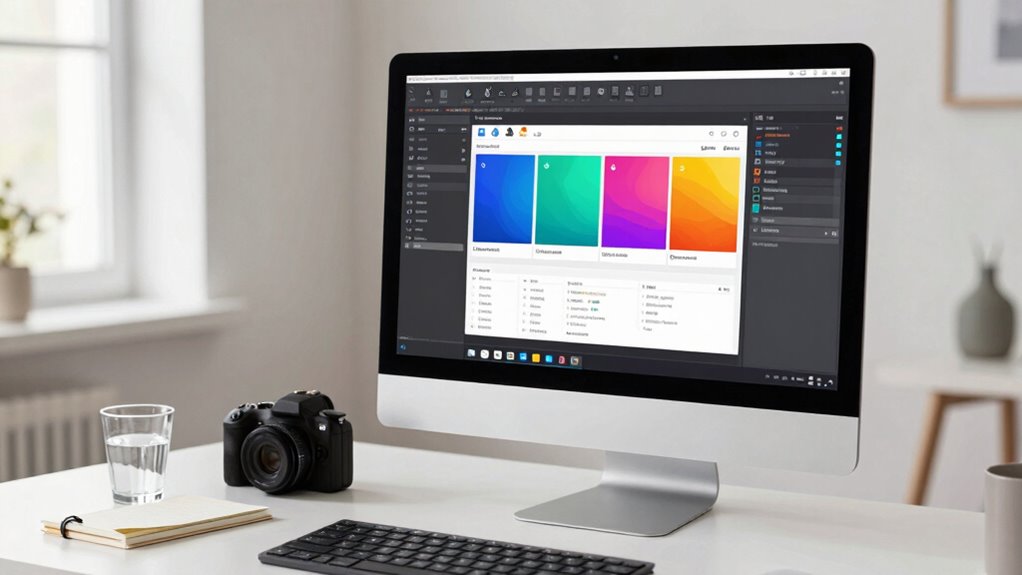
Capturing clear and organized screenshots can considerably streamline your documentation process, especially when working on complex projects. The key is creating a system that not only captures images efficiently but also guarantees they are easy to find, understand, and use later. When dealing with intricate user interfaces, it’s easy to get overwhelmed by the volume of visuals needed to explain each step. That’s where screenshot automation comes into play. By automating the process, you reduce manual effort, eliminate errors, and establish a consistent format for all your captures.
Automate screenshot capture for organized, efficient, and error-free documentation of complex user interfaces.
A well-designed screenshot system starts with understanding your workflow. You want to identify the critical points in your user interface where visual documentation is necessary. This could mean capturing login screens, feature toggles, error messages, or navigation flows. Once you know these, you can set up tools that automate the process of taking screenshots at predefined moments. Automated screenshot tools can trigger captures during specific events or when certain conditions are met, which saves you from the tedious task of manual clicking. This guarantees you don’t miss important details and keeps your documentation thorough and up-to-date.
Organizing your screenshots is equally important. Create a clear folder structure that mirrors your project’s architecture. Use descriptive filenames that include version numbers, dates, or step identifiers. This way, when you revisit your documentation, you won’t waste time searching through hundreds of images. Incorporate tagging or metadata options if your screenshot automation tool supports them, allowing for quick filtering and retrieval later. Additionally, understanding visual documentation techniques can help optimize how you present and interpret these images for maximum clarity. Implementing these techniques can make your visuals more accessible and easier to comprehend for your audience. Furthermore, choosing tools with automation capabilities can significantly enhance your efficiency by minimizing manual intervention. To ensure consistency in your visual records, establishing standardized naming conventions can also be very effective. Incorporating version control into your screenshot management can further ensure you’re always referencing the most up-to-date visuals.
automatic screenshot capture tool
As an affiliate, we earn on qualifying purchases.
As an affiliate, we earn on qualifying purchases.
Frequently Asked Questions
Can This System Integrate With Existing Project Management Tools?
Yes, this system can integrate with your existing project management tools. It offers various integration options, making it compatible with popular platforms like Jira, Trello, and Asana. You can seamlessly connect the system to streamline your workflow, automatically attach screenshots, and keep documentation up-to-date. This tool compatibility guarantees you don’t have to switch platforms, saving you time and improving collaboration across your team.
Is There a Limit to the Number of Screenshots Stored?
While there’s no strict cap on storage capacity, your screenshot organization can become more seamless with the system’s efficient management features. You might find that as your collection grows, it encourages you to curate and categorize images thoughtfully, ultimately making retrieval easier. This flexible approach guarantees you can store plenty of screenshots without worry, giving you peace of mind and a smoother workflow as your project documentation expands.
How Secure Is My Data Within the System?
Your data within the system is highly secure, thanks to data encryption that protects your information both at rest and in transit. Additionally, strict access controls guarantee only authorized users can view or modify your screenshots. These security measures work together to safeguard your sensitive data, giving you peace of mind that your information remains private and protected from unauthorized access or breaches.
Does It Support Team Collaboration Features?
Yes, the system supports team collaboration features. You can perform real-time editing, allowing multiple users to update documentation simultaneously, which boosts efficiency. User access controls let you manage permissions, ensuring only authorized team members can view or edit specific content. This setup fosters seamless collaboration, keeps everyone on the same page, and makes documentation management straightforward and secure, especially when coordinating across different roles or departments.
Can I Customize Screenshot Annotations and Tags?
They say “the devil is in the details,” and with this system, you can truly customize your workflow. You can add custom annotations to highlight specific areas and use flexible tagging to categorize screenshots effectively. This makes your documentation clearer and more tailored to your needs. So yes, you can easily customize screenshot annotations and tags, helping you organize and find information quickly and efficiently.
screen recording and screenshot software
As an affiliate, we earn on qualifying purchases.
As an affiliate, we earn on qualifying purchases.
Conclusion
Implementing this screenshot system streamlines your documentation process, saving you time and effort in the long run. By capturing clear, organized images, you reduce errors and improve clarity for future reference. Did you know that teams who use visual documentation are 60% more likely to complete projects on time? Embrace this system today, and you’ll find that maintaining accurate, accessible records becomes effortless, giving you peace of mind and a more efficient workflow.
organized screenshot management system
As an affiliate, we earn on qualifying purchases.
As an affiliate, we earn on qualifying purchases.
As an affiliate, we earn on qualifying purchases.
Fall Picks
fall essentials
As an affiliate, we earn on qualifying purchases.